4K Portable Projector: Auto Focus, Android 11 & 360° View
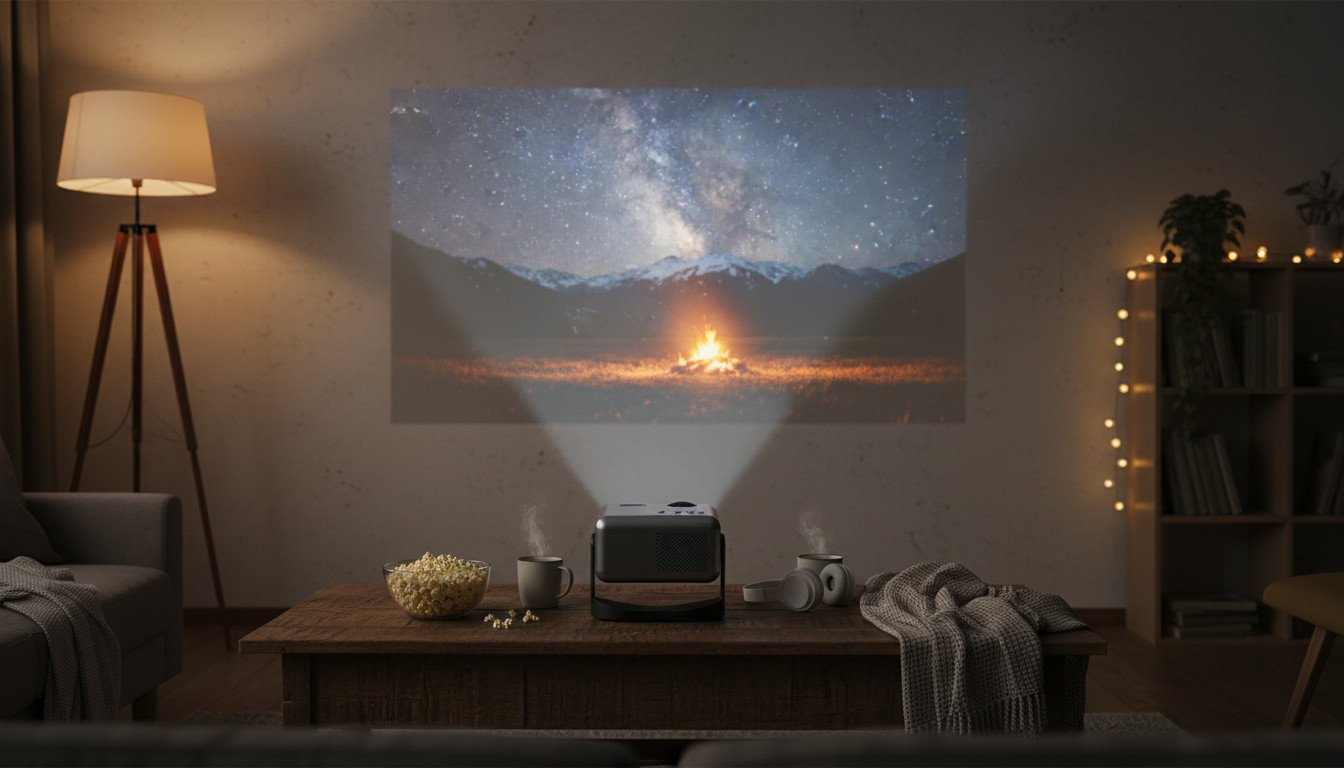
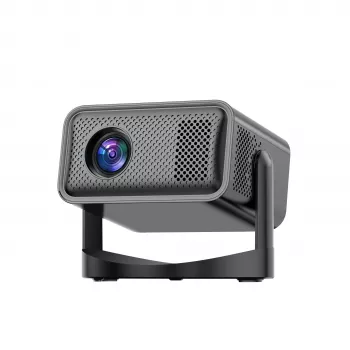
4K Portable Home Projector with Auto Focus, Bluetooth, Android 11 & 360° Cinema
Turn a wall or ceiling into a big-screen cinema in minutes with a compact projector built for flexible placement and fast setup. With auto focus, Android 11 apps, Bluetooth audio, and wide-angle viewing options, it’s designed for casual movie nights, gaming sessions, and on-the-go viewing without a complicated install.
What This Projector Is Best For
- Fast, low-fuss setup for movie nights, dorm rooms, and small apartments
- Flexible viewing setups, including angled projection and ceiling-friendly placement
- Streaming and app-based playback through Android 11 without needing an external device
- Bluetooth audio pairing for quieter nighttime viewing with headphones or better sound with speakers
- Portable entertainment for travel, backyard hangouts, and temporary living spaces
If you want a simple “set it down, power it up, and start watching” experience, auto focus and built-in Android help reduce the usual friction of projector nights. The 360° placement style is especially useful when the ideal wall isn’t directly in front of where everyone is sitting—or when the ceiling is the best screen you have.
Quick Specs and Compatibility
This portable projector is built around everyday convenience: modern playback options, easier focusing when you move it, and wireless audio for cleaner setups. Like most compact projectors, real-world results depend on your room lighting, projection size, and the quality of the content source.
At-a-Glance Details
| Feature | What it means in daily use |
|---|---|
| 4K support | Plays high-resolution content; best results with a high-quality stream/file and a properly sized screen |
| Auto focus | Helps keep the image sharp after repositioning or changing distance |
| Android 11 | Run streaming and media apps directly on the projector without a separate box (app availability varies) |
| Bluetooth audio | Pair with speakers/headphones for better sound or private listening |
| Portable design | Easier to move between rooms or take to a friend’s place |
| 360° cinema-style placement | More freedom to project on a wall, screen, or ceiling depending on the setup |
For reference on the underlying platforms and connections, see Android 11 (Android Developers), the Bluetooth technology overview (Bluetooth SIG), and the HDMI specification overview (HDMI Licensing Administrator).
Setup in Minutes: Placement, Focus, and Image Alignment
- Choose a projection surface: a smooth white wall works, but a dedicated screen typically boosts perceived contrast and uniformity.
- Place the projector on a stable surface and keep vents unobstructed to maintain performance during longer movies or binge sessions.
- Power on and allow the auto focus to sharpen the image; fine-tune only if needed after it settles.
- Adjust distance to reach the desired screen size while keeping brightness comfortable for your room.
- Use angle and positioning to center the image; avoid extreme angles when possible to preserve clarity across the entire frame.
A quick, practical routine: set the projector where it won’t get bumped, start smaller (moderate screen size), and only scale up after you confirm focus and brightness. This helps prevent the common issue of pushing size too far and ending up with a dimmer, softer-looking picture.
Picture Quality: Getting the Best “Big Screen” Look
- Room lighting matters: dimming lights can significantly improve perceived contrast and color depth.
- A moderate screen size can look sharper than pushing to the maximum size in a bright room.
- Start with a neutral picture mode, then adjust brightness/contrast so faces look natural and shadows retain detail.
- Keep the projector square to the surface when possible for the cleanest edges and minimal distortion.
- For gaming, prioritize stable placement and a consistent input source; reduce extra processing settings if a low-latency option is available in menus.
If you’re aiming for a more “cinema” vibe, pair the projector with a simple screen (even a portable one) and control ambient light. If you prefer an everyday setup (news, kids’ shows, quick YouTube clips), a plain wall and a slightly smaller image usually looks cleaner and more consistent.
Sound Options: Built-In Audio vs Bluetooth Pairing
- Built-in speaker audio is convenient for quick viewing, kids’ shows, and casual clips.
- Bluetooth speakers can add fuller bass and clearer dialogue for movies.
- Bluetooth headphones are ideal for late-night viewing without disturbing others.
- If lip-sync delay appears over Bluetooth, try a different speaker/headset or adjust audio delay settings if available in the app/player.
- For the most consistent sync, a wired audio connection (when supported by the source) can outperform wireless in some setups.
Android 11 Entertainment: Streaming, Apps, and Casting Habits
Where the 360° Cinema Style Helps Most
Care, Longevity, and Troubleshooting Basics
Product Page and Current Availability
For the latest price, photos, and purchase options, visit the product page: 4K Portable Home Projector with Auto Focus, Bluetooth, Android 11 & 360° Cinema. Confirm what’s included (cables, remote, manuals) and review return/support details before ordering.
More In-Stock Picks
- Personal Finance Made Easy Ebook – Budgeting, Saving, Investing & Debt Management Guide for Financial Freedom
- Women’s Long-Sleeve Yoga Jacket & High-Stretch Fitness Set
- Eco-Friendly Cloth Diaper Gift Set with Wet Bag
FAQ
Does a 4K projector always look sharper than 1080p?
Not always. 4K support can add detail with high-quality sources, but real-world sharpness also depends on the projector’s optics, your projection size, viewing distance, and room lighting.
Can Bluetooth speakers or headphones cause audio delay?
Yes. Bluetooth latency varies by device and codec, and it can show up as lip-sync delay; trying a different speaker/headset or using wired audio (when available) can help.
Do streaming apps always work the same on Android projectors?
No. App availability and playback behavior can vary by device certification and app updates, and an external streaming stick via HDMI is a common workaround when a specific app has limitations.














Leave a comment